

Sony Front Facing Screen Hack
Following the recent mirrorless camera releases from various cameras such as Canon and Nikon, has made me appreciate how far Sony has come from it’s early days in the mirrorless market. I’ve been a (reluctant) Sony user from the first Sony A7. Along the way, I’ve lived with small batteries (which never bothered me), lackluster AF, a single card slot (again, never really bothered me), laggy viewfinder, questionable colour rendition and a challenging menu system and with the release of the Sony A6400, featuring a front facing screen, it would appear that serious vlogers and videographers finally have their needs appeased.
Prior to the A64000, most serious vloggers and videographers have taken to various solutions to overcome the lack of a front facing screen, the most common is to mount a big an bulky video monitor such as the Andycine A6. What most people don’t realise though, is if you own any Sony camera which has the Smart Remote app, there is a good chance that you can have a compact and convenient forward facing screen. Not only do you have the option of adding a front facing screen but you can use the same screen remotely, trigger your shutter and zoom.
The Hack
The solution lies in Sony’s own RM LVR1 and LVR2 Live View monitors which they sell as an accessory and often bundle with their HDR/FDR series Action Cameras. These are meant to be used as monitors and remote trigger for their action cameras but can be used, as far as I am aware, with any Sony camera which has their Smart Remote app/function and is WiFi enabled.
The remote units themselves have various advanced functions which only work with the AS action cameras, such as GPS tagging (LVR2), intervalometer, etc. Used on non HDR/FDR cameras all you would be able to do is view the live feed off your camera and trigger the shutter, which is good enough for most people. These viewers work best with Sony cameras which utilise the Sony camera apps, specifically Sony’s Smart Remote app, which is something Sony dropped from their lineup of cameras from the A9 onward. Even without the app, the current line of Sony cameras can still connect via the built in ‘Control with Spartphone‘ feature. However, it would appear that the older LVR1 is more compatible as you can use the LVR1 on the latest A7 Mk3 but not the LVR2.


Compatibility
The Sony RM LVR1 or 2 costs around US$100 second hand or US$150 new. There is also a RM LVR3 which is only ever sold with the Sony FDR series action cameras. If you don’t already have one of these units, check the compatibility chart below before committing to getting one. I’ve listed all the Sony cameras I’ve tried the LVRs on. If you are successful in pairing the LVRs with one of the Sony cameras where I have no data on, please let me know in the comment section below and I’ll update the list.
A7 Mk2 – LVR1 and LVR2, Confirmed working
A7 Mk3 – LVR1 Confirmed working, LVR2 incompatible
A7R – Unconfirmed
A7R Mk2 – LVR1 and LVR2, Confirmed working
A7R Mk3 – Unconfirmed
A7S – Unconfirmed
A7S Mk2 – Unconfirmed
RX1R – Unconfirmed
RX10 Mk2 – LVR1 and LVR2, Confirmed working
RX10 Mk3 – Unconfirmed
RX10 Mk4 – LVR1 Unconfirmed, LVR2 Confirmed working
RX100 Mk2 – Unconfirmed
RX100 Mk3 – Unconfirmed
RX100 Mk4 – Unconfirmed
RX100 Mk5 – Unconfirmed
RX100 Mk6 – Unconfirmed
NEX 5/T – Unconfirmed
NEX 6 – LVR1 Unconfirmed, LVR2 Confirmed working
NEX 7 – Unconfirmed
A6000 – Unconfirmed
A6300 – Unconfirmed
A6500 – LVR1 Unconfirmed, LVR2 Confirmed working
QX1 – LVR1 and LVR2 Confirmed working
QX10 – Unconfirmed
QX30 – Unconfirmed
QX100 – Unconfirmed
Setting up the RM LVR
- Turn on the unit using the On/Off button at the bottom of the unit
- Ensure that the unit is set up for single camera control
- Set date and time
WiFi pairing
- Turn on your camera
- Connecting
- If you are using the Sony Smart Remote App, go to Applications, select “Applications List” and launch the Smart remote Control App.
- If you are using a later Sony camera which does not support Sony camera apps, go to Network, select “Ctrl w/ Smartphone” and then select “Connection“


- The RM LVR unit should detect your camera and show this on it’s screen. Highlight the camera and press the shutter release button
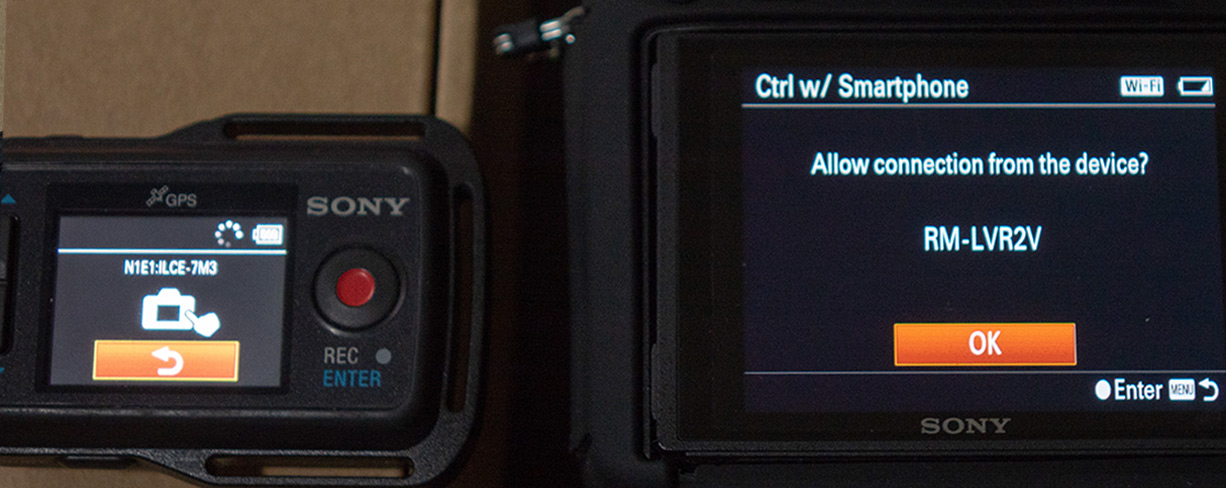
- On your camera, the camera should detect that your RM LVR is trying to connect and ask you to approve connection.
- Click “OK” and the camera should enter into remote mode and supply the RM LVR with a live view of your camera.

Mounting

Conclusion
